Annotation
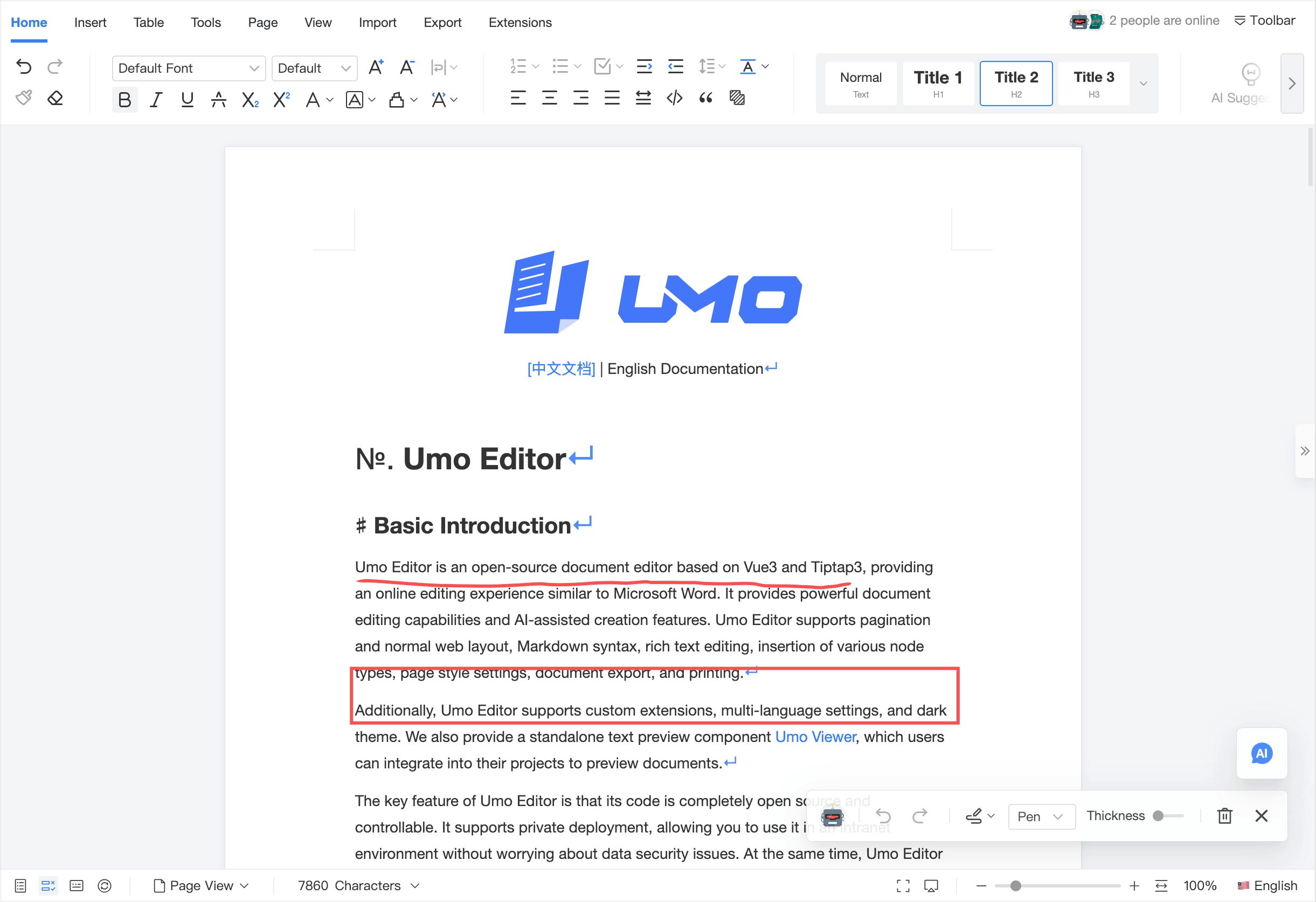
The annotation feature lets you make temporary visual marks on document pages—freehand annotation, underlines, shape selection, and erasing. It is useful for explanations, reviews, and collaborative discussions. Annotation can also be used in presentation mode for live demos.
Features
- Document annotation: zoomable, serializable, undo/redo supported
- Multiple tools: freehand pen, straight line, rectangle, circle, eraser
- Color & stroke width: supports adjusting pen color and stroke width
- Collaboration sync: in collaboration mode, the canvas content syncs in real time, including the current annotator info
- Edit protection: when someone enables annotation during collaboration, other clients are notified and switched to read-only to avoid conflicts
Use Cases
- Live meetings: highlight key points, circle conclusions, and guide attention quickly
- Proposal reviews: mark issues directly on the page and sync them to collaborators
- Teaching demos: annotate while presenting without modifying the document body
- Remote discussions: replace screenshot doodles with live in-document markup
- Visual QA: flag layout problems in charts, tables, formulas, and figures
- Contract/policy review: visually pinpoint key clauses for step-by-step discussion
- Design feedback: use the document as a spec and mark changes on the page
- Support/training guides: annotate key buttons and paths to improve clarity
Works Well With
Collaboration
- Annotations sync in collaboration mode, which is great for remote meetings and reviews: Collaborative Editing
- Enabling annotation triggers edit protection to reduce conflicts
Comments
- Use annotation for “visual pointing”; use comments for “explanation and decisions”: Comments
Track Changes
- Use annotation to point out where the problem is, and Track Changes to implement and finalize the actual edit: Track Changes
Screenshot
Usage
Entry
- The floating button (pen icon) at the bottom-right of the page toggles annotation mode on/off.
- When enabled, an annotation toolbar appears for selecting tools, adjusting color/size, undo/redo, clearing the canvas, and closing.
Toolbar
- Undo / Redo: revert or restore annotation operations
- Color: set pen color
- Tool: choose the annotation tool (freehand/line/rectangle/circle/eraser)
- Size: adjust stroke width
- Clear: clear the current canvas
- Close: exit annotation mode
Works in Presentation Mode
When presentation mode is enabled, the editor typically becomes read-only to prevent accidental edits, but the annotation layer remains available:
- You can use annotation during presentations to explain content
- Close annotation mode when finished
Collaboration Mode
When collaboration is enabled:
- The canvas content syncs in real time across clients
- The current annotator info syncs and is displayed in the toolbar
- When any collaborator enables annotation mode, other collaborators are notified and the editor switches to read-only
- When annotation mode is closed, editing capability is restored (if not currently in presentation mode and the document itself is not read-only)
Default Configuration
const defaultOptions = {
  annotation: {
    enabled: true,
    defaultColor: '#ff4d4f',
    defaultSize: 3,
  },
}
Configuration Details
annotation.enabled
Description: Whether to enable annotation. When disabled, the entry button is hidden.
Type: Boolean
Default: true
annotation.defaultColor
Description: Default pen color.
Type: String
Default: #ff4d4f
annotation.defaultSize
Description: Default stroke width.
Type: Number
Default: 3
Methods
openAnnotation
Description: Opens the document annotation toolbar.
Parameters: None.
Return Value: None
closeAnnotation
Description: Closes the document annotation toolbar.
Parameters: None.
Return Value: None