Introduction
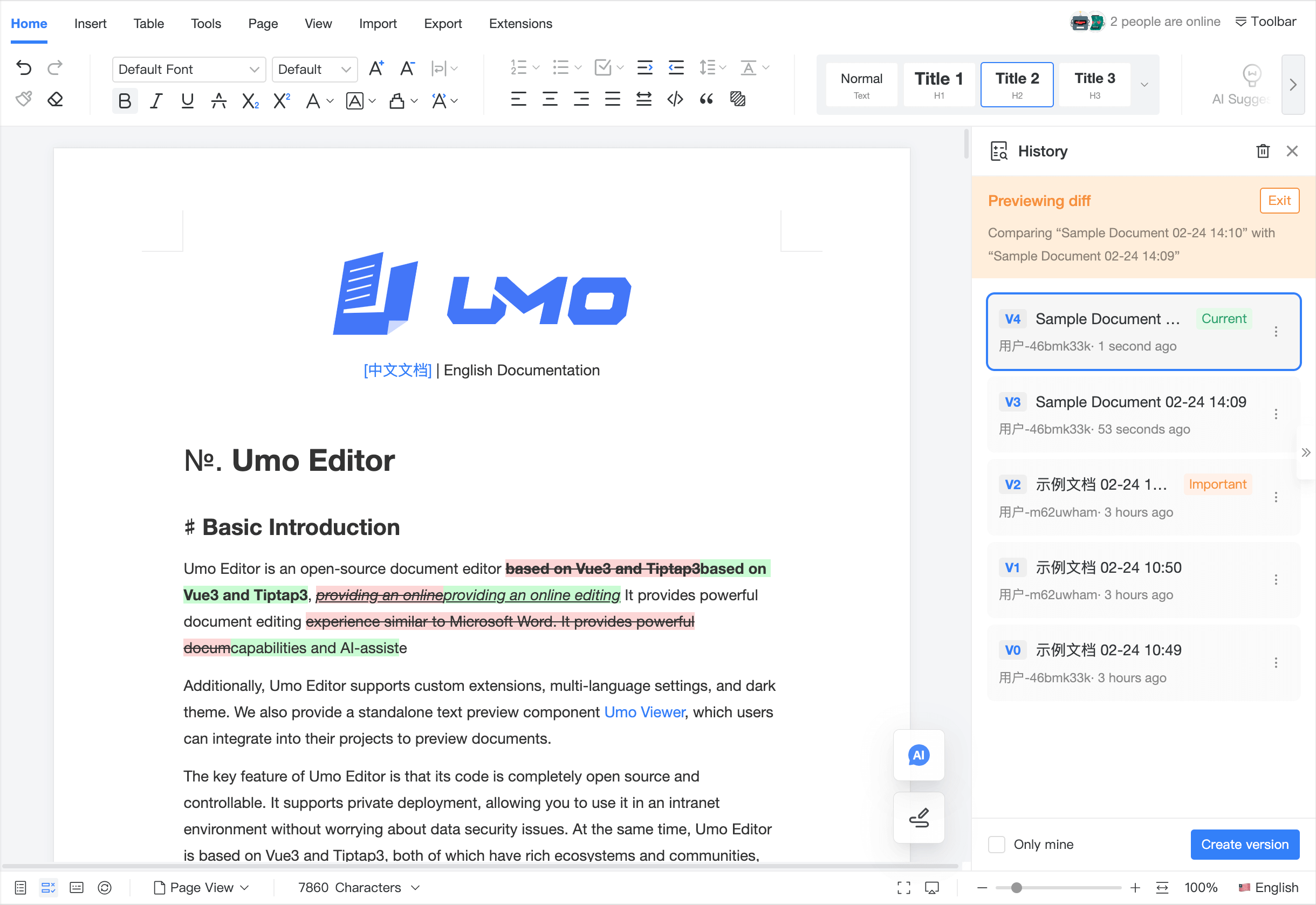
Document version history helps teams save a document state as a “version” during collaborative editing, and provides a version list, version preview, version comparison, and restore (rollback).
You can think of it as: adding “named milestones + restorable time points” to a collaborative document.
Screenshots
Prerequisites
Version history relies on collaboration. Make sure you have:
- Collaboration enabled: Collaboration
- Server deployed and configured: Umo Editor Server
What you can do
- Create versions manually (save the current document as a named version)
- Preview a version (view the content without affecting the current document)
- Compare versions (compare the differences between two versions)
- Restore to a version (restore the document and sync the change to collaborators)
- View version metadata (creator, created time, etc.)
- Mark important versions (mark key versions as “Important” for quick scanning)
Use Cases
- Milestones: save versions at kickoff, approvals, acceptance, and release checkpoints
- Approval workflows: save a “submitted for approval” version and a “approved” version
- External delivery: freeze the delivery state as a version for later audit and review
- Rollback rescue: restore a stable version after accidental edits or conflicts
- Release comparison: compare two milestone versions to locate changes quickly
- Alternative proposals: save multiple proposal versions for review and selection
- Long-running docs: periodically freeze versions so you can always find “what it was then”
- Compliance archiving: save an “archive version” before external publishing
- Weekly progress tracking: create a version every week to form an evolution timeline
- Risk control before big refactors: create a version before large rewrites or redesigns
Works Well With
Collaboration
- Version history relies on collaboration—treat versions as your “milestone tool” in the collaboration workflow: Collaboration
- With server storage, versions can be associated with business workflow checkpoints: Umo Editor Server
Track Changes
- Track Changes is for day-to-day review; versions are for milestone snapshots. Finalize first, then save an acceptance version: Track Changes
- If you need to preserve review traces, save a version before finalizing as a record
Comments
- Keep comments as part of your milestone review record (optionally include/exclude them): Comments
Document Forms
- When publishing form templates, adjusting fields, or archiving generated results, create versions at key checkpoints for rollback and auditability: Document Forms
Export
- Export PDFs/Word files at milestone versions for archiving and delivery: Export
How to use it
Version history is mainly used through:
- Configuration: enable/tune it via
options.versions(see Configuration) - Methods: call exposed methods to manage versions from outside the editor (see Configuration & Methods)
- UI: use the built-in “Version History” panel to create/preview/compare/restore (see Getting Started)
What is an “Important” version
An “Important” version is used to mark milestones (for example: stage acceptance, release checkpoints, or handoff points):
- The version list shows an “Important” label for quick identification
- You can toggle “Mark as Important / Unmark as Important” from the version item’s “More” menu